How to Make an AI Short Film: The Full Workflow from Idea to Final Cut
How to make an AI short film step by step: story, storyboard, style lock, character sheets, Seedance clips, editing and the first 3 seconds. Free tools.
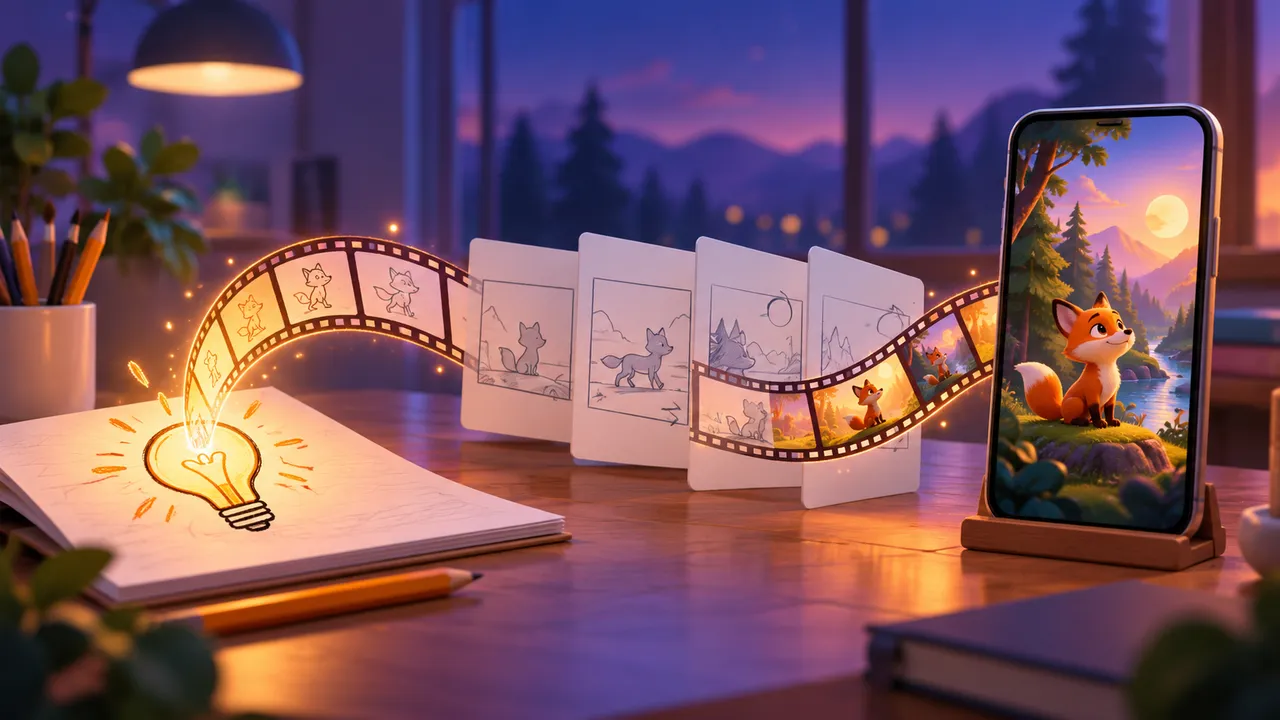
An AI short film is not one lucky prompt. It is a small production line: you write a story, split it into shots, lock one look, build character and scene images, generate short clips, and cut them together. This guide walks through every step for a vertical YouTube Short, and each step links a free tool and a deeper guide.
What you need to make an AI short film
You do not need a big budget or a team. You need five things:
- A chat AI (any large language model) to help with the story and the storyboard.
- An image model such as Midjourney to make character sheets and empty backgrounds.
- A video model that accepts reference images. This guide uses Seedance 2.0 as the example.
- An editor such as CapCut for cuts, music and export.
- Our free prompt tools. No sign-up, and none of them render video. They write and analyse prompts that you paste into the apps above.
All examples here use 9:16 (1080×1920), because most viewers watch Shorts on a phone. 16:9 works the same way if you make long-form YouTube videos. Just swap the ratio in each prompt and in your export settings.
The 7-step AI short film workflow at a glance
- Story: decide what happens.
- Storyboard: split the story into 15-second segments of 3–5 shots.
- Style: write one style line and never change it.
- Assets: make character sheets and empty scene plates.
- Clips: generate each segment with reference images.
- Edit: voice first, then transitions, music and fades.
- Hook and publish: make the first 3 seconds count.
Do the steps in this order. Most failed projects skip step 3 or step 4, and then the characters change face in every clip.
Step 1: Find a story that works as an AI short film
There are three ways to get a story. Pick the one that fits your skill level.
Ask the AI for a storyboard directly. This is the fastest way, but chat models love poetic lines like "her heart breaks like autumn rain". A video model cannot draw that, so you will rewrite a lot.
Write the full story first. Ask for a 400–500 word story with no more than three characters. Read it yourself, fix anything that feels wrong, and only then turn it into shots. This is the safest path for your first AI short film.
Borrow a proven story skeleton. Many viral shorts share the same bones, for example separation → worry → reunion → together. Keep the skeleton, then change the characters, the place and the key prop. A lost kitten becomes a lost kite; a grandmother becomes a younger brother. You borrow the shape, not the content.
To study a short that already works, paste its YouTube Shorts link into Video to Prompt. It returns scene-by-scene prompts, so you can see how many shots it uses and how fast it moves. Our video to script guide shows how to turn that breakdown into a script you can make your own.
When you ask a chat AI for anything, use a three-part frame: role (who it is), task (what to make) and standard (format, count, length). Vague asks give vague stories.
Step 2: Turn your AI short film script into a storyboard
A script tells the story. A storyboard tells the camera what to show. They are not the same document.
Rules that save you hours:
- Split the film into 15-second segments, with 3–5 shots in each segment. Treat this as a planning unit and check the current limits in your video app.
- One shot, one action. Do not change shot size, location or weather inside a shot.
- Write things a camera can see: "she drops the letter", not "she feels lost".
- Use few adjectives and plain text with no tables, so it pastes cleanly into other tools.
The Storyboard Generator turns an idea into numbered shots with camera moves and timing. If you want to choose angles yourself, the Shot List Generator gives you a shot-by-shot list with framing for each line. For the full rule set, read AI storyboard: one shot, one action, and keep the camera angles and shots cheat sheet open while you write.
Here is a prompt you can copy into any chat AI to go from story to storyboard:
ROLE: You are a storyboard artist for a vertical AI short film.
TASK: Turn the story below into a storyboard for [VIDEO MODEL].
STANDARD:
- Total length: [TOTAL SECONDS] seconds, in 15-second segments.
- Each segment has 3-5 shots. Each shot has one action only.
- No change of shot size, location or weather inside one shot.
- For each shot give: time range, shot size, camera angle,
  what we see, dialogue (if any).
- Concrete and drawable. Few adjectives. Plain text, no tables.
- Aspect ratio: [9:16 or 16:9].
STORY: [PASTE YOUR STORY]

EXAMPLE (filled):
ROLE: You are a storyboard artist for a vertical AI short film.
TASK: Turn the story below into a storyboard for Seedance 2.0.
STANDARD: 60 seconds, 15-second segments, 3-5 shots each,
one action per shot, plain text, aspect ratio 9:16.
STORY: A boy loses his red kite in a storm. His older sister
climbs the water tower at dawn to bring it back.
Step 3: Lock one visual style
Every AI short film needs one style line that appears, word for word, in every image and video prompt. If the style drifts, viewers notice in the first cut.
Styles fall into three families:
- 3D: Pixar-like animation, stylised 3D, Unreal Engine 5 look.
- Painted: flat illustration, anime, oil painting, watercolour.
- Realistic: natural light, street, portrait, film grain.
You can blend two styles if they do not fight each other. Choose which style controls shapes and which controls color; test one frame before combining them throughout the film. If a style is rare, the model may not know its name, so give a reference image instead.
To borrow a look you like, upload the image to Image to Prompt. Keep only the style words from the result, drop the subject, and add your own subject. Save the final line in a note and paste it everywhere.
Step 4: Build character and scene assets for your AI short film
Consistency comes from reference images, not from luck.
- Character front sheet: 9:16, white background, full body, A-pose, facing the camera.
- Turnaround: a 16:9 sheet showing front, side and back of the same character.
- Scene plates: empty 16:9 backgrounds with no people, one for each location.
For each image, build the prompt from these parts: style + angle + subject + background + action + lighting + mood. You do not need all of them; four to six is enough. The consistent character guide covers sheets, turnarounds and binding them as references step by step.
Step 5: Generate AI short film clips with Seedance 2.0
At the time of writing, Seedance 2.0 accepts several reference images and generates clips of up to about 15 seconds, with timed sub-shots inside one prompt. Check the current limits in the app before you plan.
For each 15-second segment:
- Bind your references in the prompt as @image1 (character), @image2 (scene), and so on.
- Split the segment into four timed sub-shots: 0–3 s, 3–6 s, 6–10 s, 10–15 s.
- Time dialogue aloud. About 2.5 English words per second is a rough planning estimate, not a guaranteed speaking speed.
- Leave about 0.5 seconds of silence at the end so lines do not get cut off.
- If a transition needs a scene change, prepare first and last frames in an app that supports that input mode.
- Mosaic or blur alone does not prove a content restriction. Check the app message, reference quality, compression and motion; if a restriction is reported, remove the flagged element.
Our Seedance prompt tool helps you write and tidy each segment prompt. The Seedance 2.0 prompt template has a full copyable segment with all of the rules above.
Step 6: Edit the clips into one AI short film
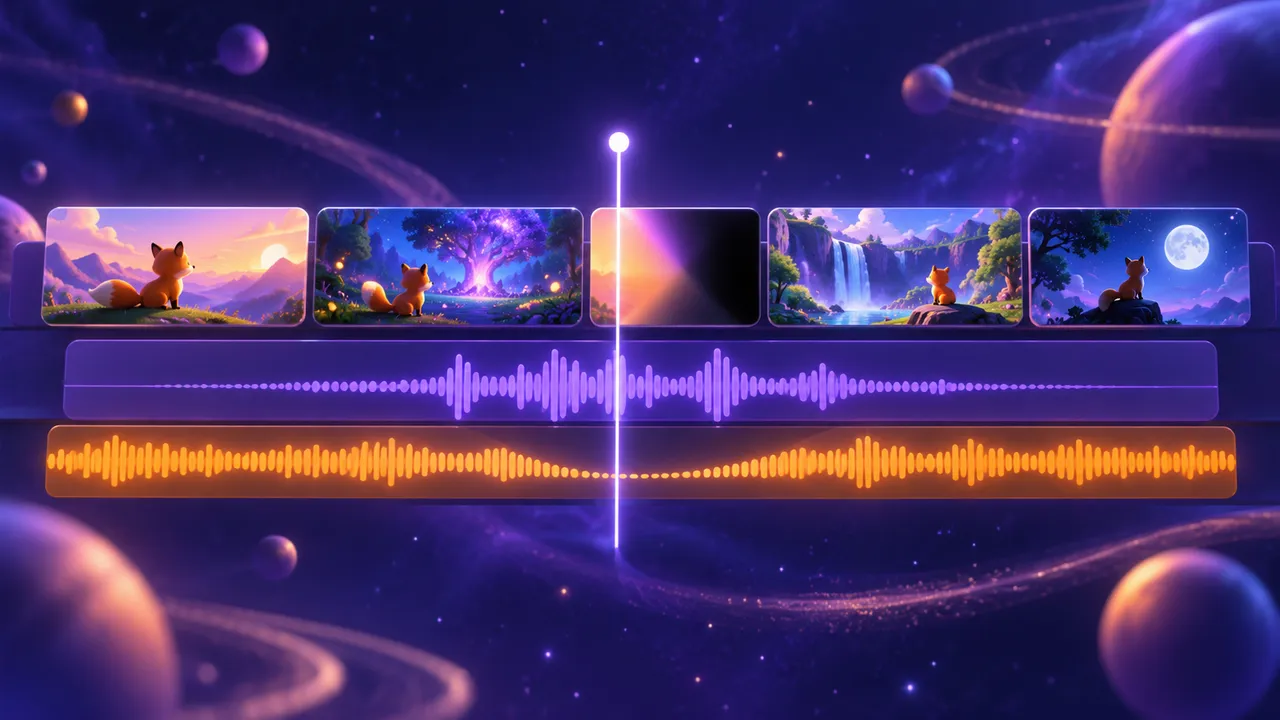
Put the clips in order and work in this sequence: voice, cuts, music, fades.
- Inspect the first and last frames of each clip; trim only the frames that contain unwanted artifacts.
- Try a 0.5-second dip to black between scenes; use hard cuts inside a scene and adjust by watching the result.
- Try lowering music roughly 12 dB from its original level under speech, then listen and adjust; the source volume matters.
- Export at 9:16, 1080×1920.
The CapCut transitions guide explains starting settings and how to adjust them by listening and watching.
Step 7: Hook the viewer and publish
Your first 3 seconds decide whether anyone sees the rest of your AI short film. Open on a conflict, a question or a strange image, and start in the middle of an action. Our guide to video hooks for AI shorts has a template bank you can copy.
Before you upload, check that the title matches the hook, pick a clear cover frame, and plan the next episode. Recurring characters can make a series recognizable, but audience growth is not guaranteed.
Try it free: Video to Prompt — paste a YouTube Shorts link and get scene-by-scene prompts to plan your next AI short film. No sign-up.
FAQ
How long should my first AI short film be?
Start with 30–60 seconds, which is two to four 15-second segments. It is long enough to tell a small story and small enough to revise without rebuilding a long episode.
Do I need to pay to make an AI short film?
Our prompt tools are free and need no sign-up. Image and video models have their own plans and credits, so check each app before you start.
Can I make an AI short film in 16:9 instead of 9:16?
Yes. The workflow is the same. Change the ratio in your storyboard, your video prompts and your export settings.
Why do my characters look different in every clip?
Usually the style line changed, or the clip had no reference image. Lock one style line and bind the same character sheet in every segment.